

This tutorial illustrates how to get a Google Sheets spreadsheet connected to an external Large Language Model (LLM) capable of answering queries formulated in natural language (a.k.a. question-answering).
Follow these easy steps to enable LLM capabilities in your spreadsheet and start asking questions.
Build a Custom Spreadsheet Function
First, a custom function needs to be defined and incorporated in Google Sheets to be able to call an external LLM. In our example, we will use a Hugging Face pre-trained LLM, concretely bert-base-cased-squad2, which belongs to the BERT family of language models.
For a little dose of context, BERT models are based on an encoder-only transformer architecture. This is typically the architecture for language tasks that only require language understanding, in which no language (text) is generated as the output. Text classification, sentiment analysis, and extractive summarization and question-answering are examples of language understanding tasks. The specific BERT model instance we will use has been trained for extractive question-answering (Q-A), that is, finding the answer to a question in a portion of text called context, which is passed to the model alongside the question itself.
This is what an encoder-only transformer architecture similar to that of BERT models looks like, together with a depiction of the extractive Q-A use case it will be used for:

Left: an overview of the encoder-only transformer architecture used in BERT models; Right: Extractive Q-A language task | Image by Author
Extractive Q-A takes two inputs: the question, and the context from which the answer shall be extracted.
Back to the quest of getting the custom function we need, its code is provided below. Copy and paste this code in the script editor of Google Sheets (you can open the script editor by clicking on the ‘App Scripts’ item in the ‘Extensions’ menu in Google Sheets).
// Hugging Face API key
const HUGGING_FACE_API_KEY = 'your_hugging_face_api_key';

// Function to query the Hugging Face BERT model for question answering
function getBertAnswer(context, question) {
  var url = 'https://api-inference.huggingface.co/models/deepset/bert-base-cased-squad2';

  var payload = {
    "inputs": {
      "question": question,
      "context": context
    }
  };

  var options = {
    "method" : "POST",
    "contentType": "application/json",
    "headers": {
      "Authorization": "Bearer " + HUGGING_FACE_API_KEY
    },
    "payload" : JSON.stringify(payload)
  };

  try {
    var response = UrlFetchApp.fetch(url, options);
    var json = JSON.parse(response.getContentText());

    // Return the answer from the BERT model
    return json["answer"];
  } catch (e) {
    Logger.log("Error fetching data: " + e.toString());
    return "Error fetching answer";
  }
}

// Example custom function to query a question from Google Sheets
// Use in Google Sheets like =ASKBERT(A2, B2)
function ASKBERT(contextCell, questionCell) {
  var context = SpreadsheetApp.getActiveSpreadsheet().getRange(contextCell).getValue();
  var question = SpreadsheetApp.getActiveSpreadsheet().getRange(questionCell).getValue();

  var answer = getBertAnswer(context, question);

  return answer;
}
Once pasted, replace ‘your_hugging_face_api_key’ on the first line of the script with your Hugging Face access token, which you need to get from Hugging Face website to be able to access its LLMs externally. Not sure how to obtain your access token? Check this related tutorial for a detailed how-to.
The script does not contain one single function but two of them.
- The ASKBERT function, defined at the bottom, is the one we will use in the spreadsheet passing two arguments to it: the cell containing the context, and the cell containing the question.
- This function uses another function, getBertAnswer, that does the rest of the job, including communication with the BERT language model hosted in Hugging Face.
Now it just remains saving your script using any name with “.gs” extension and going back to your Google Spreadsheets tab in the browser to start seeing the function in action.
Try the Custom Function
The previous work was the hard part. It everything went smoothly, now all you need to see this new function in action is some example data, namely by populating a few cells with some example contexts and a few other cells with some questions related to the text in the example contexts.
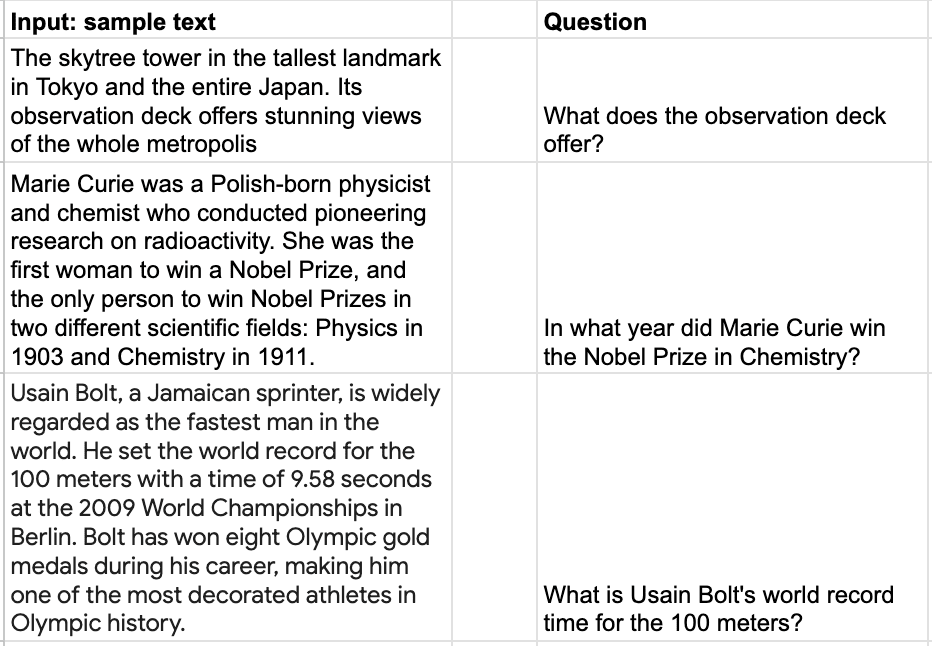
Three example contexts and questions in Google Sheets
To answer the questions using the BERT model endpoint defined by the previous function, simply populate another three cells with function calls using a syntax like this (assuming que contexts and questions are placed on cells in columns A and C, respectively):
=ASKBERT(A6,C6)
=ASKBERT(A7,C7)
=ASKBERT(A8,C8)
Cross your fingers for a couple of seconds (maybe three), and you should get answers like this:
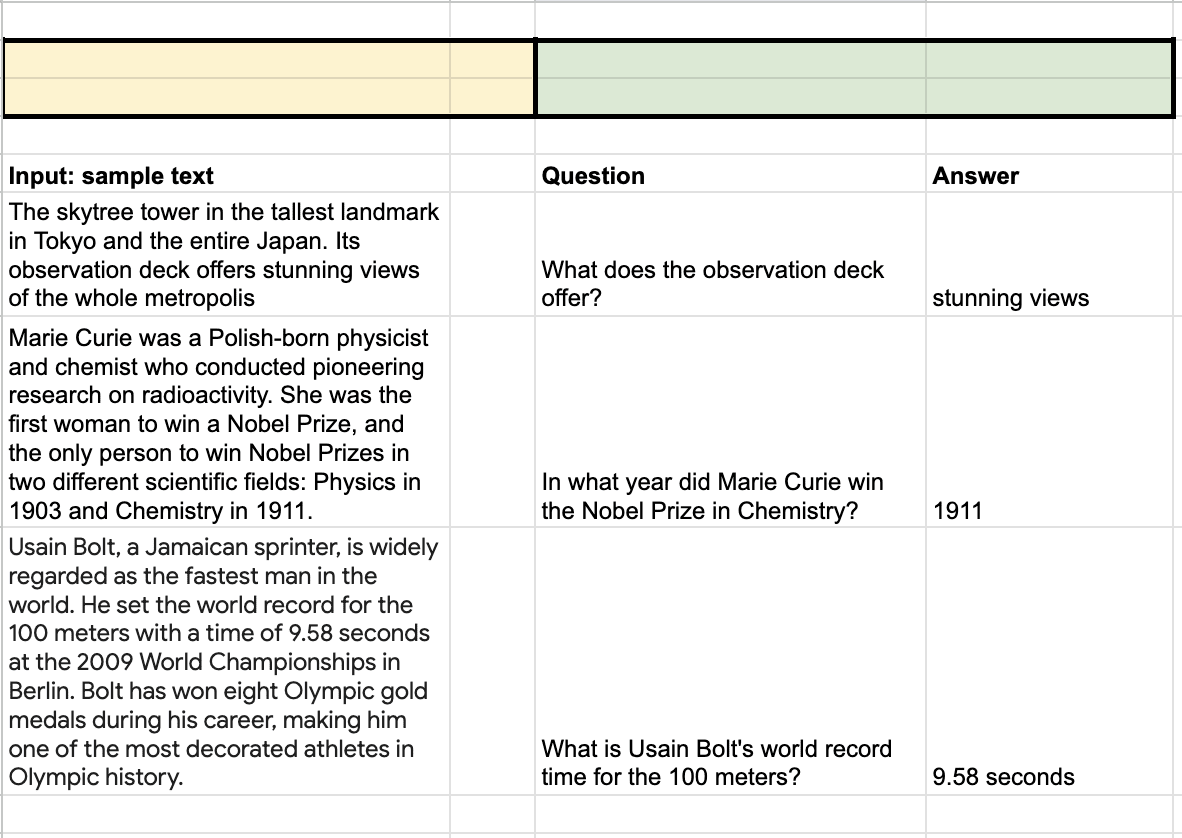
Performing question-answering in your Google spreadsheet
After this point, feel free to play and experiment by yourself with any example contexts and questions of your choice.
The following diagram summarizes the entire workflow, with numbered circled labels indicating the steps involved. The workflow summarizes all that happens “behind the scenes” when using the AKSBERT function.

Google Sheets workflow for natural language querying using a BERT model for Q-A
Closing Remarks
Whilst stunning and extremely useful to quickly query over long amounts of text in spreadsheet cells, it is worth being aware of some limitations in the function we defined.
- It only accepts single cells for the context, not being able to accommodate ranges of cells containing multiple pieces of text in one single use.
- The nature of extractive Q-A implies that the BERT-based LLM tries to find the answer in the text passed in as context. These models are not perfect: if the context does not contain an accurate enough answer to the question formulated, the model may provide an inconsistent answer or even an error message.
