
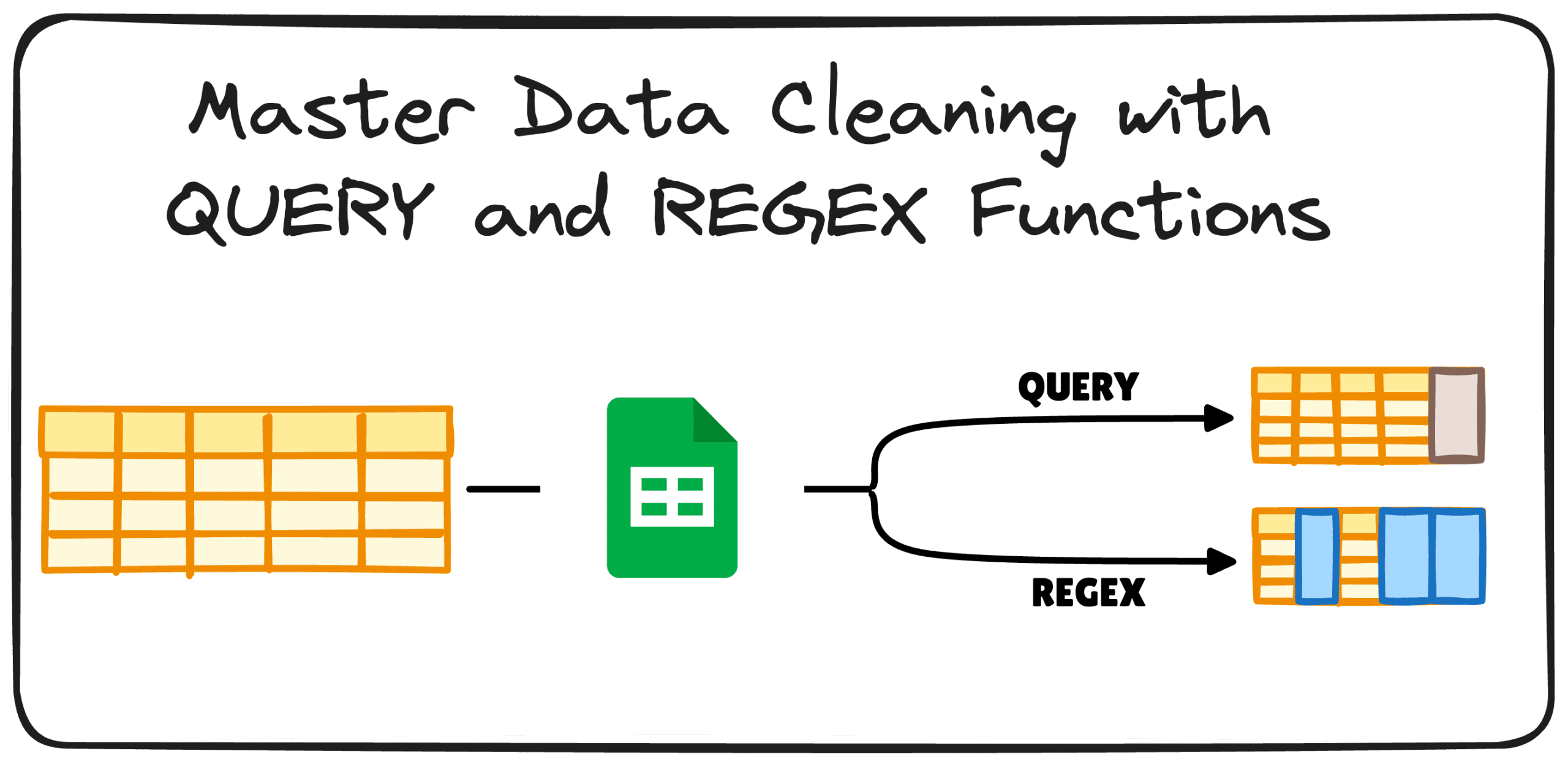
Image by Author
Most disorganized spreadsheets do not require scripts to clean up and sort through. In Google Sheets, two tools can do most of the heavy lifting: Regular Expression (REGEX) for repairing and validating strings, and QUERY for filtering, reshaping, and aggregating. If you are familiar with a small collection of patterns, it is possible to clean a survey dump, CRM, or scraped list efficiently and to reuse the formulas in spreadsheets across files.
Below is a digestible toolkit that you can copy into a helper tab and modify. All you will need to remember is speed, clarity, and results that you could explain to a colleague.
A Simple Way To Work
A simple way to work is to keep everything in a dedicated tab called _helpers. In row 1, write labels for each recipe (for example: email_domain, phone_digits, dedup). In row 2, paste the formulas. Point them to your raw data using named ranges (e.g. Data!A:Z as raw). This way, all transformations stay visible in one place, and you avoid making ad-hoc edits in the raw sheet.
The Regex Trio You’ll Use Most
Google Sheets gives you three regex functions:
- REGEXEXTRACT(text, pattern): pull the part that matches.
- REGEXREPLACE(text, pattern, replacement): standardize or strip.
- REGEXMATCH(text, pattern): returns TRUE/FALSE for validation.
A few patterns cover most issues.
1) Keep Only Digits (Phones, IDs)
=REGEXREPLACE(A2, "[^\d]", "")
2) Normalize Spacing And Punctuation
=TRIM(REGEXREPLACE(A2, "\s+", " "))
3) Remove Prefixes/Suffixes You Don’t Need (e.g., “SKU-“, “ID:”)
=REGEXREPLACE(A2, "^(SKU-|ID:\s*)", "")
4) Extract Email Domain
=REGEXEXTRACT(A2, "@([A-Za-z0-9.-]+\.[A-Za-z]{2,})")
5) Validate Basic Email Shape
=REGEXMATCH(A2, "^[A-Za-z0-9._%+-]+@[A-Za-z0-9.-]+\.[A-Za-z]{2,}$")
6) Pull The First 3 Letters And 4 Digits From Mixed SKUs
Useful when vendor IDs have variable separators.
=REGEXEXTRACT(A2, "[A-Za-z]{3}[^0-9]*[0-9]{4}")
7) Tidy Inconsistent Casing
Use LOWER, UPPER, or PROPER after regex cleanup:
=PROPER(TRIM(REGEXREPLACE(A2, "\s+", " ")))
Tip: start with the least opinionated cleanup (trim and collapse spaces), then remove noise (prefixes), then apply casing. This reduces surprises.
Query Basics That Make Cleaning Fast
QUERY lets you write SQL-like statements against a range. The syntax is:
=QUERY(range, "select Col1, Col3 where Col2 is not null order by Col3", headers)
Where headers is the number of header rows in the range (often 1).
Three patterns you’ll use a lot:
1) Keep Only The Rows You Want
Filter out blanks, specific statuses, or impossible values.
=QUERY(raw, "select A,B,C where C is not null and D <> 'Cancelled'", 1)
2) Pick And Reorder Columns
Good for creating a model table for downstream tools.
=QUERY(raw, "select B, D, A, H label B 'email', D 'country', A 'id', H 'amount'", 1)
3) Sort And Limit
=QUERY(raw, "select A,B,C order by C desc limit 100", 1)
Dedupe, Enrich, And Reshape With Small Combos
A few compositions turn QUERY into a compact cleaning pipeline.
A) Deduplicate On A Key
UNIQUE is the simplest path. If you need “first occurrence wins,” wrap SORT before UNIQUE.
=UNIQUE(SORT(raw, 1, TRUE))
To dedupe by a specific column (say email in column B) but keep the first row per email:
=UNIQUE(FILTER(raw, COUNTIFS(OFFSET(raw,1,1,ROW(raw)-1,1),INDEX(raw,0,2))=0))
For most cases, UNIQUE(raw) is enough. When in doubt, sort deterministically first.
B) Add Computed Columns On The Fly
You can extend a range with array-literals, then QUERY the result.
=QUERY({raw, ARRAYFORMULA(REGEXREPLACE(raw!C2:C, "[^\d]", ""))},
      "select Col1, Col2, Col3, Col4 where Col4 is not null",
      1)
In that example, Col4 is the “digits only” version of the phone (derived from column C).
C) Clean Casing For Names Without Touching The Raw
=ARRAYFORMULA(QUERY({raw!A1:A, PROPER(raw!B1:B), PROPER(raw!C1:C)},
      "select Col1, Col2, Col3 where Col1 is not null", 1))
D) Roll Up And Summarize
Group and aggregate like a pivot, but in a formula you can audit.
=QUERY(raw,
 "select D, count(A), sum(H)
  where H is not null
  group by D
  label count(A) 'rows', sum(H) 'total_amount'",
 1)
E) Filter By Dates
Convert user-entered dates to real dates with DATEVALUE before using where.
=QUERY(raw,
 "select A,B,C
  where C >= date '" & TEXT(DATEVALUE(G1), "yyyy-mm-dd") & "'
  and C <= date '" & TEXT(DATEVALUE(H1), "yyyy-mm-dd") & "'",
 1)
Where G1 and H1 hold your start and end dates in a friendly format.
When To Use Regex vs QUERY
- Use REGEX when the problem is inside a single cell: strip noise, validate shape, extract a component (area code, domain, SKU piece).
- Use QUERY when the problem is about rows and columns: filter, select, sort, dedupe, aggregate, reshape.
They pair well: clean with regex, then select and roll up with QUERY.
Common Pitfalls And How To Avoid Them
- Over-tight regex. If a pattern looks perfect but matches nothing, loosen it. Replace \d{4} with \d{3,5} while you test. Keep test cases in a small grid so you can see failures quickly.
- Array-formula surprises. Wrap column-wide transforms with ARRAYFORMULA only when you really want them to spill. Otherwise, fill down a fixed range.
- Header counting in QUERY. The third argument matters. If your range has 1 header row and you pass 0, Col1 may point to the header itself. Keep it consistent.
- Type mismatches for dates. Convert strings to dates before comparing, and build date ‘yyyy-mm-dd’ literals inside the query string.
- Hidden spaces. TRIM removes standard spaces, not non-breaking ones. For hard cases: =TRIM(REGEXREPLACE(A2, “\s+”, ” “)) to normalize, then proceed.
Some Final Good Practices To Keep In Mind
- Always trim, de-noise, case, and validate — in that order.
- Keep a minimal set of patterns; comment them in plain English.
- Build derived columns with array-literals {} and label them.
- Sort before deduping when “first/last wins” matters.
- Group with QUERY for quick summaries you can audit later.
- Don’t touch the raw; make everything reproducible.
That’s enough to turn most messy sheets into structured tables a teammate can trust. If the dataset grows or the steps multiply, park the same logic in a database or Power Query later. For now, let these patterns do the heavy lifting.
