

You can create AI-assisted formulas in Excel using GPT and that can enhance your spreadsheet by generating complex formulas, explanations, and data analysis insights. GPT-3 models like “text-davinci-003 “have been widely used for various text generation tasks and support details but it’s been depreciated since January 2024. However, OpenAI introduced GPT-3.5 (e.g., gpt-3.5-turbo), which is more optimized for conversational tasks and follows a chat-based format. In this article, we will show how to create AI-assisted formulas in Excel with GPT-3.5.
Let’s explore several methods to create AI-assisted formulas in Excel with GPT.
Method 1: Using VBA for GPT Integration in Excel
If you don’t have Microsoft 365 or prefer VBA, here’s a way to set up a VBA macro to call GPT.
Step 1: Get Your OpenAI API Key
- If you don’t have an account, sign up at OpenAI and get your key.
- If you already have an account, log in to the OpenAI account.
- From Dashboard >> select API Key >> click on Create new secret key.
- In Create new secret key box;
- Name the key >> select Permissions >> click on Create secret key.

- In the Save your key dialog box;
- Copy the generated API key and store it in a safe place to authenticate your API requests. It won’t be visible once you create an API key.
- Click on Done.

Never share your API key publicly or expose it in client-side code.
Step 2: Integrating OpenAI via VBA in Excel
You can integrate OpenAI GPT with Excel using VBA (Visual Basic for Applications) to build an AI-powered financial forecasting model.
- Go to the Developer tab >> select Visual Basic.
- In the VBA editor, go to Insert >> select Module.
- Insert the following VBA code in the Module to create a user-defined function.

VBA Code:
Function AI_Assisted_Formulas_with_GPT(prompt As String) As String
    Dim http As Object
    Dim Json As String
    Dim ApiKey As String
    Dim Response As String
    Dim jsonParsed As Object
    Dim content As String

    ApiKey = "YOUR_OPENAI_API_KEY" ' Your API key for OpenAI

    ' Create HTTP request
    Set http = CreateObject("MSXML2.XMLHTTP.6.0")
    http.Open "POST", "https://api.openai.com/v1/chat/completions", False
    http.setRequestHeader "Content-Type", "application/json"
    http.setRequestHeader "Authorization", "Bearer " & ApiKey

    ' Prepare the JSON payload for GPT-3.5 request
    Json = "{""model"":""gpt-3.5-turbo"",""messages"":[{""role"":""user"",""content"":""" & prompt & """}],""max_tokens"":50}"

    ' Send the request to OpenAI
    http.Send Json
    Response = http.responseText

    ' Parse the JSON response
    Set jsonParsed = JsonConverter.ParseJson(Response)

    ' Navigate to the "content" field in the JSON structure
    On Error Resume Next ' To handle potential missing fields gracefully
    content = jsonParsed("choices")(1)("message")("content")
    On Error GoTo 0 ' Reset error handling

    ' Check if we successfully extracted the "content" field
    If content <> "" Then
        AI_Assisted_Formulas_with_GPT = content
    Else
        MsgBox "GPT response does not contain valid content."
        AI_Assisted_Formulas_with_GPT = ""
    End If

    ' Clean up
    Set http = Nothing
    Set jsonParsed = Nothing
End Function
- Replace “YOUR_OPENAI_API_KEY” with your own OpenAI API key.
Explanation:
- Define the AI_Assisted_Formulas_with_GPT function with a prompt input, which sends the user’s request to GPT-3.5 and returns a response.
- To initialize HTTP requests use MSXML2.XMLHTTP.6.0 to create an HTTP request.
- Include your OpenAI API key and specify headers for a JSON request.
- Prepare JSON payload to format a JSON string with the user’s prompt for the GPT-3 model. Set “model” to “gpt-3.5-turbo” and configure token limits as needed.
- Send the JSON request, receive the response, and parse it with a JSON parser to get the generated content.
- You can use error handling to check if the response contains content. If successful, output the content; otherwise, show a message box for invalid responses.
Step 3: Install JSON Parsing Library
As Excel does not natively support JSON parsing you will need to download VBA-JSON from GitHub to parse JSON responses from OpenAI.
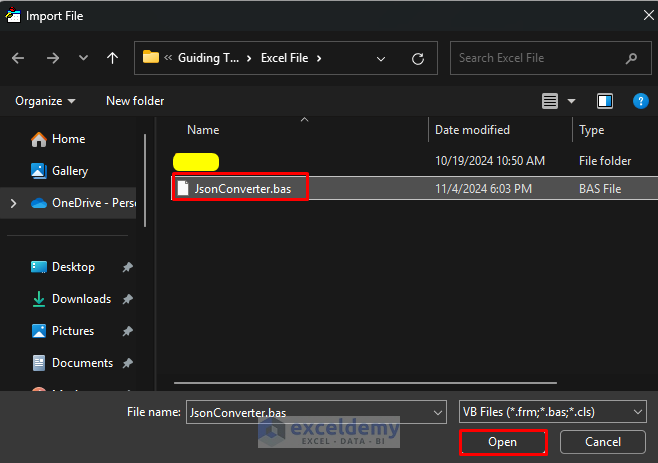
- Download JsonConverter.bas from GitHub.
- In the VBA editor, go to File tab >> select Import File.

- In the Import Box >> select JsonConverter.bas to add it to the project.
Enable References:
You will need to enable Microsoft Scripting Runtime reference it is necessary because the JsonConverter library relies on Dictionary objects to manage JSON data structures.
- Go to Tools tab >> select References.
- In the Available References box >> check Microsoft Scripting Runtime >> click OK.

Step 3: Get AI-Assisted Formula in Excel
- Save the code and go back to your Excel worksheet.
- Insert the following formula in Excel. Provide a specific prompt within the formula.
Formula:
=AI_Assisted_Formulas_with_GPT("Please provide only the Excel formula without any explanations. The formula should calculate the total revenue by multiplying Units Sold in column E by Price per Unit in column F.")
Output:
This function returned the Excel formula to calculate the sales of each product.

Formula:
=AI_Assisted_Formulas_with_GPT("Please provide only the Excel formula without any explanations. The formula should calculate the total sales from Units Sold in column E by Price per Unit in column F.")
Output:
This function returned the Excel formula to calculate the total sales of all products.

Method 2: Using ChatGPT for Excel Add-ins
In Excel 365 you can import ChatGPT for Excel add-ins to use it in your Excel sheet. It can analyze data, create formulas, etc.
To import the add-ins:
- Go to the Home tab >> click on Add-ins >> select ChatGPT for Excel >> click on Add.

- You will get the ChatGPT for Excel in the Home tab. Now click on it to see how to use it and what features are available.
- To create an AI-assisted formula, insert the following formula in the selected cell.
Formula:
=AI.ASK("Please provide only the Excel formula without any explanations. The formula should calculate the total revenue by multiplying Units Sold in column E2 by Price per Unit in column F2",E2:F6)

Method 3: Using GPTEXCEL
In this platform, you can generate spreadsheet formulas with AI.
- Login to the GPTEXCEL website.
- Go to the Dashboard >> select Formulas.

- Insert the prompt in the description box >> click on generate >> click on copy to get the formula.

Tips for Effective Use
- Keep your prompts concise yet specific to ensure GPT understands your request.
- Try to use clear language and avoid ambiguous terms for better results.
- GPT-3.5 may not always output perfectly tailored formulas, especially for niche cases.
- This setup may incur usage costs depending on your OpenAI plan.
Conclusion
By integrating GPT with Excel, you can streamline your workflow and generate complex formulas with ease. This AI-assisted approach not only saves time but also enhances your productivity. With some practice, you can master the creation of AI-assisted formulas tailored to your specific needs.
