

Image by Editor | Midjourney
A dynamic price quote generator would allow businesses to generate price quotes for multiple products, each with different quantities while applying automatic calculations for discounts and taxes.
In this article, we will show how to create a dynamic price quote generator in Google Sheets.
Step 1: Set Up the Product Database
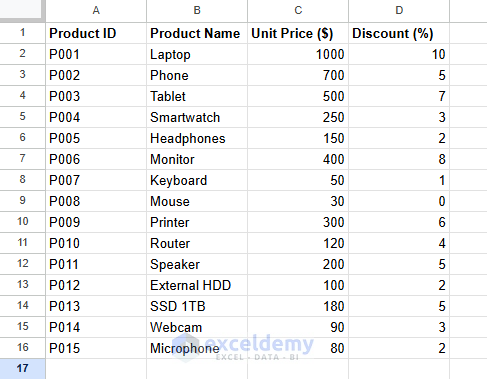
You will need a separate sheet to list the product details. This database will be used to automatically pull product details into the quote generator.
Our sample product database includes:
- Product ID
- Product Name
- Unit Price ($)
- Discount (%)
Step 2: Create the Quote Generator Layout
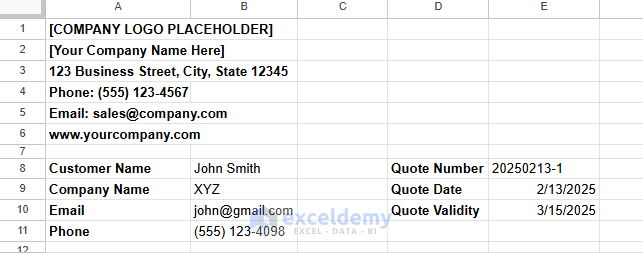
Now, create another sheet named Quote Generator. You can use this sheet to dynamically populate price quotes in Google Sheets. You will need to insert the company and client information manually.
List your company details:
- [COMPANY LOGO PLACEHOLDER]
- [Your Company Name Here]
- 123 Business Street, City, State 12345
- Phone: (555) 123-4567
- Email: sales@company.com
- www.yourcompany.com
List the customer details:
- Customer Name
- Company Name
- Address
- Phone
- Quote Number
- Quote Date
- Quote Validity
For quote number, select cell E8 and insert the following formula.
="2025" & TEXT(TODAY(),"MMdd") & "-" & (ROW(E8)-7)
For quote date, select cell E9 and insert the following formula.
=TODAY()
And, finally, for quote validity, select cell E10 and insert the following formula.
=E9+30
Step 3: Create the Multi-Product Selection Table
You will need to create a dynamic product selection table. To create a quote generator, add a drop-down list, use lookup formulas, and perform some calculations. This is where customers can select multiple products and specify different quantities.
Insert the following list in cells B15 to F15.
- Product ID
- Product Name
- Unit Price ($)
- Quantity
- Discount %
- Line Total ($)
Step 4. Add Product Selection Dropdown
To make product selection easier:
- Select A16:A20 (where users will select products)
- Click Insert >> select Dropdown
- Set Criteria to Dropdown (from a range)
- Enter Product List!A2:A16 (range where Product IDs are stored)
- Click Done.

Now clicking a cell in column A will show a dropdown list of products.
Step 5: Auto-Fill Product Details Using VLOOKUP
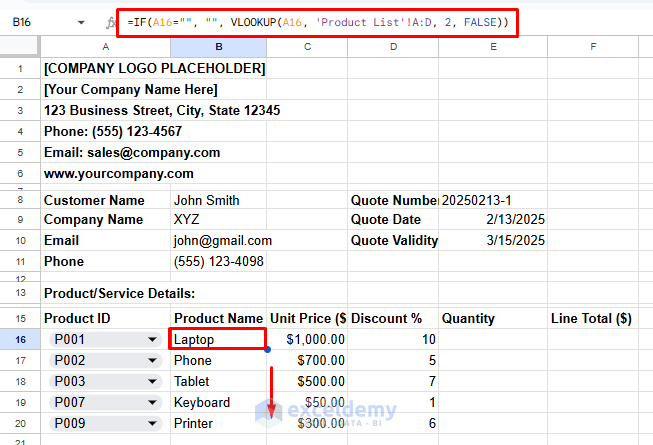
We will use the VLOOKUP function to retrieve the product name, price, and discount based on the product ID. Once a product is selected in column A, its name, price, and discount should be filled in automatically.
1. Fetch Product Name
Select cell B16 and insert the following formula.
=IF(A16="", "", VLOOKUP(A16, 'Product List'!A:D, 2, FALSE))
This formula looks up the selected product from the Product List and returns the product name.
2. Fetch Unit Price
Select cell C16 and insert the following formula.
=IF(A16="", "", VLOOKUP(A16, 'Product List'!A:D, 3, FALSE))
This formula looks up the selected product from the Product List and returns the unit price.
3. Fetch Discount
Select cell D16 and insert the following formula. Then drag these formula down from row 12 to row 20 to apply them to all product selection rows.
=IF(A16="", "", VLOOKUP(A16, 'Product List'!A:D, 4, FALSE))
This formula retrieves the applicable discount of the selected product.
Step 6: Allow Different Quantities
Leave column E (Quantity) as a manual entry field. Users can enter different quantities for each product.
Step 7: Calculate the Line Total for Each Product
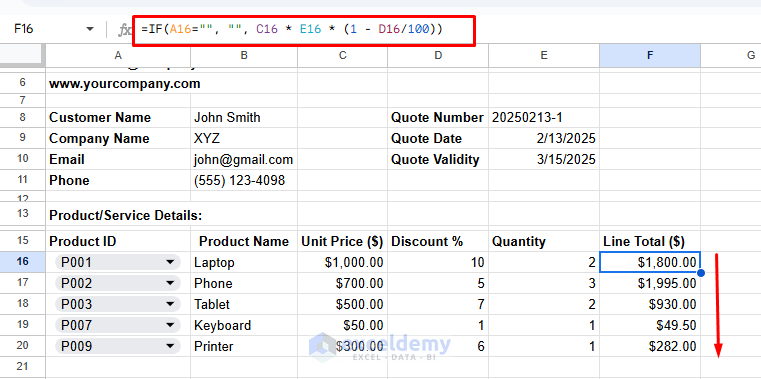
To compute the final price after applying quantity and discount, select cell F16 and insert the following formula. Then drag this formula down to apply to all rows.
=IF(A16="", "", C16 * E16 * (1 - D16/100))
This formula returns the line total for the selected product.
- C16 = Unit Price
- E16 = Quantity (user input)
- D16 = Discount Percentage (converted to decimal)
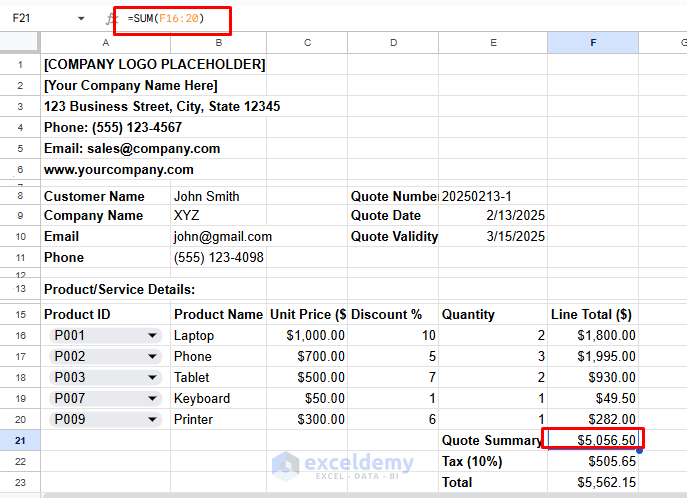
Step 8: Auto-Calculate the Quote Summary
Now, you can use Google Sheets formulas to auto-calculate the quote summary.
1. Calculate Subtotal
Select cell F21 and insert the following formula.
=SUM(F12:F20)
2. Tax Calculation
Select cell F22 and insert the following formula.
=F21*0.1
3. Calculate Final Total
Select cell F23 and insert the following formula.
=F21+F22
Step 9: Apply Formatting for Clarity
Finally, let’s add the following formatting to our dynamic price quote generator.
- Make headings bold: Select headings and press Ctrl + B.
- Apply borders: Select product table then go to Format tab >> select Borders.
- Use currency format for prices:
- Select price-related cells.
- Go to Format tab >> from Number >> select Currency.
- Highlight missing inputs: Use Conditional Formatting:
- Select cells and set a rule: If empty, highlight them in red.
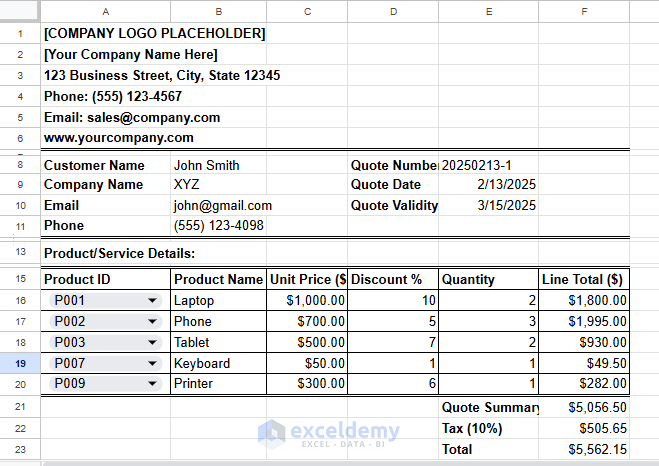
And here is our final product.
Wrapping Up
By following these steps, you can create a fully functional dynamic price quote generator in Google Sheets. It will automatically fetch data from the product database to calculate the total price along with tax and discount. You can generate quotes for multiple products with different quantities. Explore this quote generator and update it based on your requirements.
